
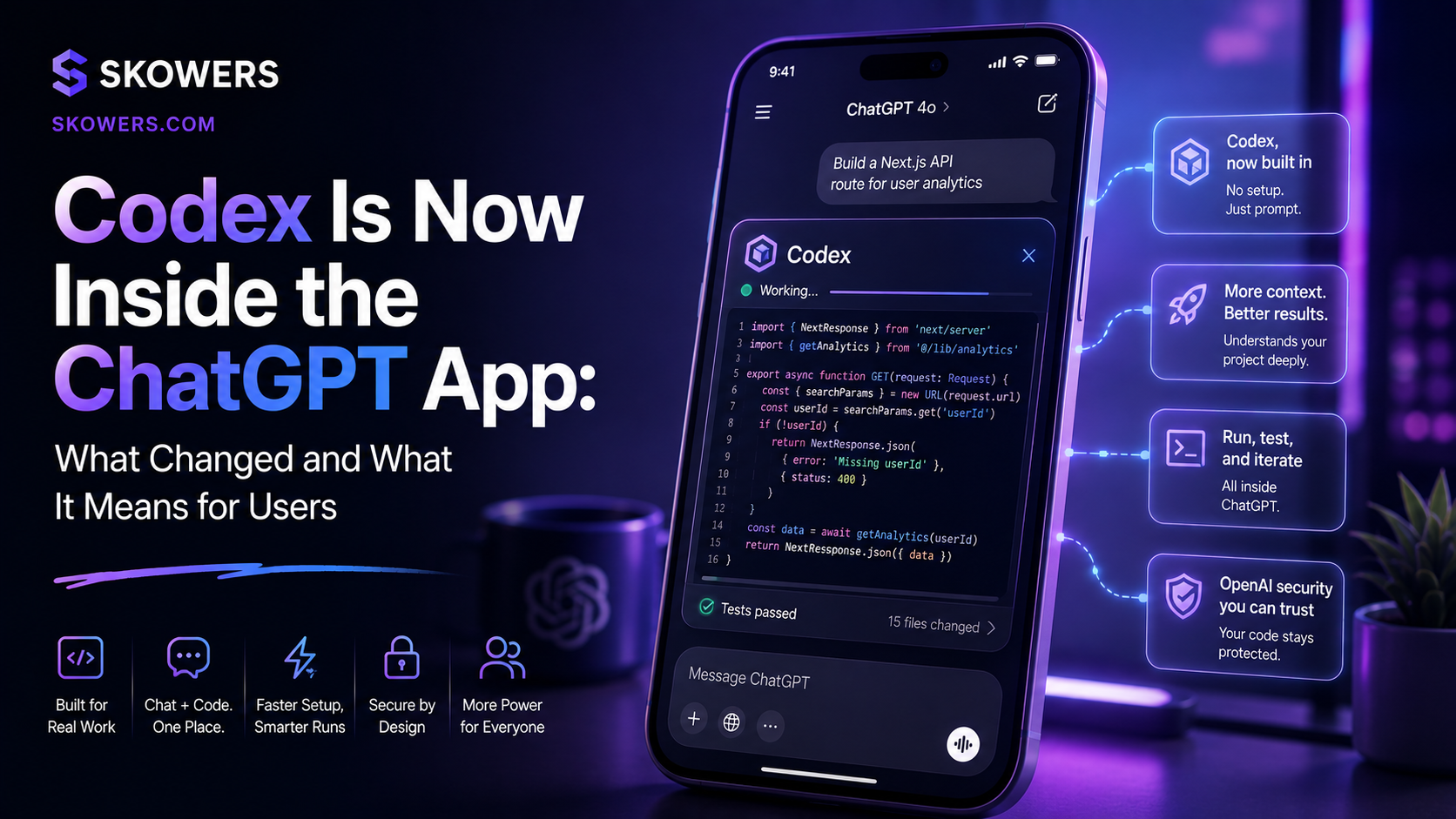
Codex Is Now Inside the ChatGPT App: What Changed and What It Means for Users
On July 9, 2026, OpenAI made a product change that sounds dramatic and is more practical than it first appears: Codex is now part of the ChatGPT desktop app on macOS and Windows.
That line has already produced a wave of confusion. Some users heard "Codex became ChatGPT." Others heard "ChatGPT ate Codex." The clearer version is this:
The standalone Codex desktop experience is merging into a broader ChatGPT desktop app. Codex still exists as a dedicated coding mode. ChatGPT Work is a new agentic mode for longer projects across apps and files. Chat remains available as conversation. The older ChatGPT desktop app is being repositioned as ChatGPT Classic.
If you already use Codex, OpenAI says you can update as usual, keep projects and settings, make Codex your default view, and on macOS keep the Codex app icon. The brand shift is real. The workflow does not have to vanish overnight.
What Actually Changed
According to OpenAI's Codex changelog, Codex joins the ChatGPT desktop app in release 26.707. Existing Codex app users can update normally and keep projects, settings, and workflows. You can make Codex the default view and, on macOS, keep the Codex icon.
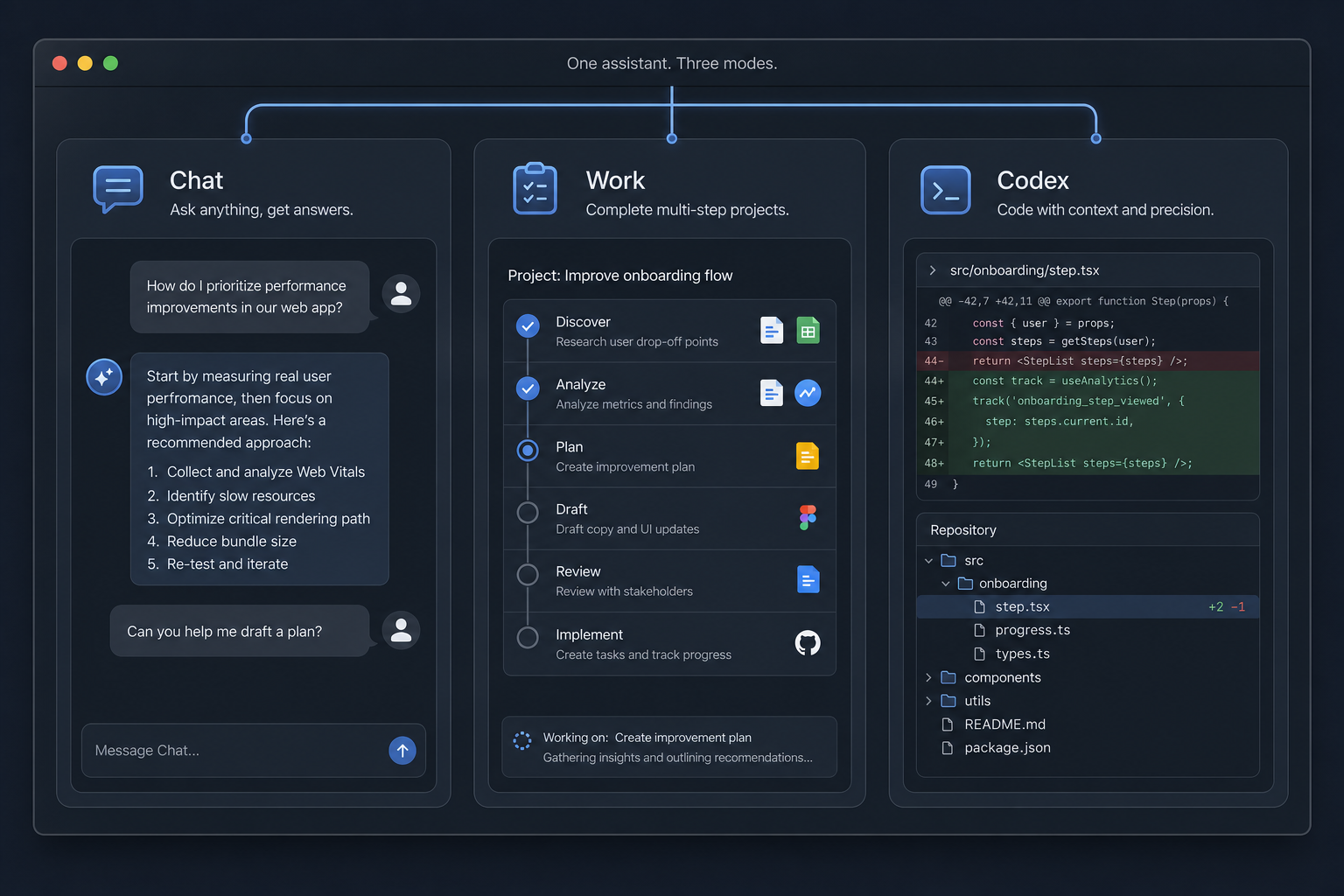
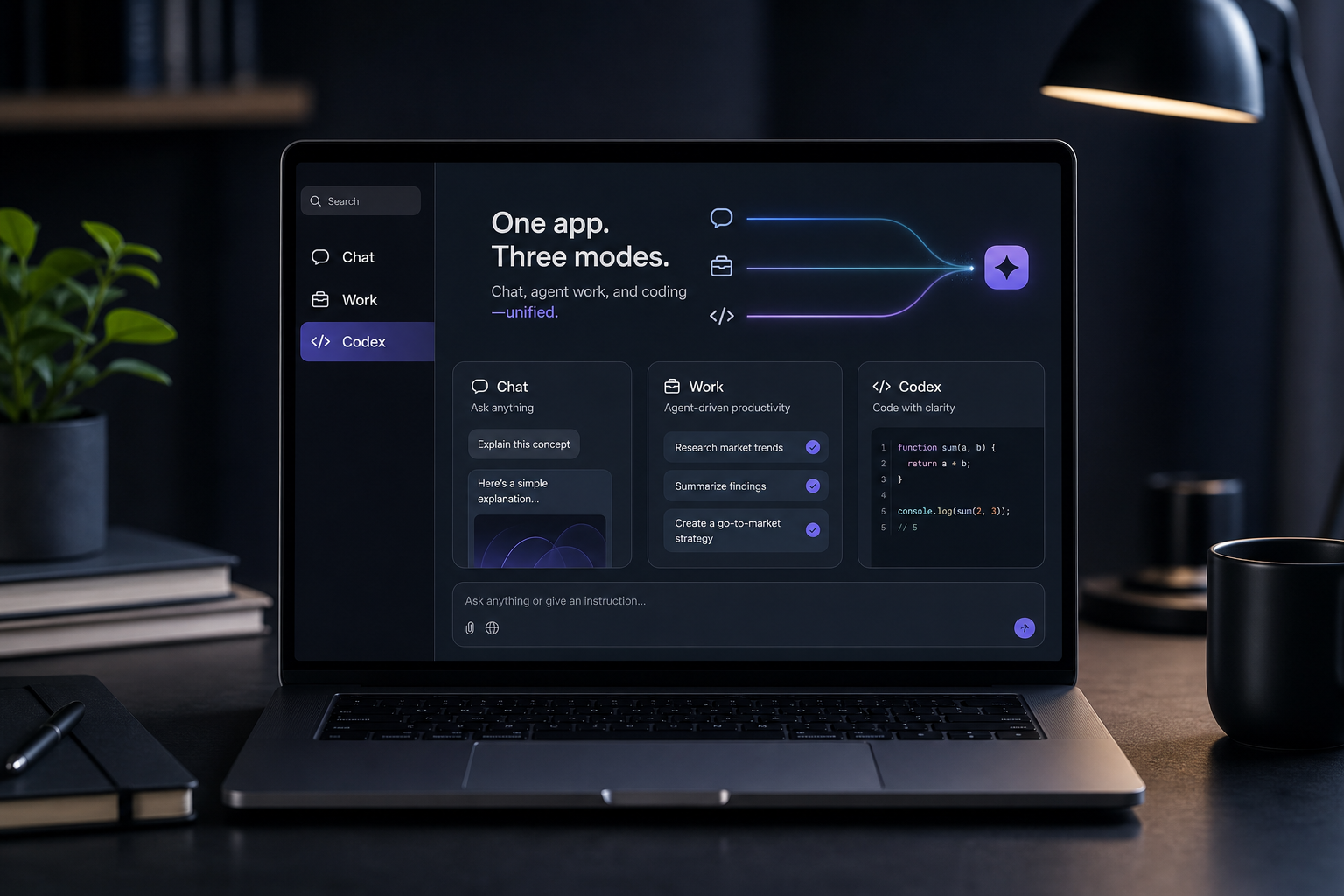
Reporting around the launch also describes a unified desktop surface with three practical lanes:
- Chat for conversation and everyday prompting.
- Work for agentic project work across apps, files, and multi-step goals.
- Codex for software development: repositories, diffs, pull requests, and coding workflows.
This is less "Codex disappeared" and more "OpenAI chose ChatGPT as the home brand for the desktop superapp, while Codex remains the developer cockpit inside it."
Why OpenAI Did This
OpenAI has been pushing toward one desktop home for chatting, coding, browsing, and longer-running agent work. Keeping separate ChatGPT and Codex apps creates product confusion and splits usage patterns.
Folding Codex into ChatGPT does three strategic things:
- Puts the strongest consumer brand, ChatGPT, at the center of the desktop experience.
- Keeps Codex as a focused developer mode instead of forcing every coder into a generic chat window.
- Creates room for ChatGPT Work, an agentic layer aimed at complex projects that need more than a single reply.
In other words: ChatGPT becomes the shell. Codex remains the specialist workshop. Work becomes the general-purpose agent lane.
What This Means If You Already Use Codex
If Codex is already part of your daily stack, the short version is reassuring.
What should stay familiar
- Your projects, settings, and workflows can carry forward through a normal update.
- Codex remains a dedicated coding experience.
- You can still prioritize the developer view by making Codex the default.
- On macOS, you can keep the Codex icon if that is how you find the app.
What may feel different
- The product home is now framed as ChatGPT, not a standalone Codex-only destination.
- You may see Chat and Work sitting beside Codex instead of a coding-only shell.
- Desktop discovery, onboarding, and update messaging will increasingly speak ChatGPT language.
Practical recommendation for technical teams: update, confirm your repositories and settings still load, then set Codex as default if coding is still your primary use. Do not rebuild your process until you verify the update path.
What This Means If You Mainly Use ChatGPT
For everyday ChatGPT users, the bigger story is not "learn to code overnight." It is that the desktop app is becoming more than a chat window.
You may now encounter:
- A clearer split between conversation and longer agentic work.
- A dedicated Codex mode if you do need technical help on local or project work.
- A Work mode intended for multi-step goals that can stretch across apps and files.
- A renamed older desktop experience, ChatGPT Classic, for people who were using the previous ChatGPT app.
This matters for operators, founders, marketers, and support teams because agentic desktop work is no longer only a developer story. If Work can stay with a project longer and act across files and apps, the product is competing less with "better autocomplete" and more with "assistant that can finish the job."
Chat vs Work vs Codex: How to Choose
Use this simple decision rule.
Use Chat when
- You need ideas, drafts, explanations, summaries, or research help.
- The job ends with text, a plan, or a decision.
- You are exploring, not executing a multi-hour project.
Use Work when
- The goal spans multiple steps, files, or apps.
- You want an agent to stay with the project longer than a single chat turn.
- The output is finished work, not just advice.
Use Codex when
- The work is software development.
- You need repository context, diffs, pull request review, or coding workflows.
- You want the developer-oriented interface rather than a general chat or work shell.
How Teams Can Use the New Setup
Solo founders
Keep Chat for drafting and research. Use Work for multi-step operating tasks such as preparing launch assets, organizing research packs, or turning a goal into a completed project. Open Codex only when the bottleneck is code, scripts, automations, or technical debugging.
Product and engineering teams
Treat Codex as the default desktop mode for repository work. Use it for inline diff editing, pull request review, and multi-repo projects. Keep Chat for design docs and stakeholder explanations. Use Work when the task crosses from code into broader project execution.
Marketing and operations teams
Do not ignore this because "Codex sounds like a developer tool." The important expansion is Work. If an agent can operate across apps and files, that is where campaign packaging, research synthesis, SOP drafting, and operational cleanup may move. Codex still helps when automations, scripts, or technical tooling enter the workflow.
Agencies
Standardize on one desktop app so account teams, strategists, and developers are not juggling disconnected OpenAI surfaces. Route creative and client communication through Chat, delivery projects through Work, and technical builds through Codex.
What We Know So Far
Based on OpenAI's changelog and reporting around the July 9, 2026 launch:
- Codex is part of the ChatGPT desktop app on macOS and Windows.
- Existing Codex app users can update and keep projects, settings, and workflows.
- Users can make Codex the default view.
- On macOS, users can keep the Codex app icon.
- Chat, Work, and Codex are being positioned as available modes in the broader desktop experience.
- Codex remains focused on software development, including stronger coding workflows such as inline editing in diffs and pull request review.
- ChatGPT Work is being positioned as an agentic mode for complex projects across apps and files.
- The older ChatGPT desktop app is being renamed ChatGPT Classic.
What is still evolving: exact plan packaging, how every feature maps by subscription tier over time, how web and mobile continue to sync with desktop Codex projects, and how aggressively Work will expand into everyday non-developer jobs.
What This Does Not Mean
A few overreactions are already circulating. Push back on them.
It does not mean coding assistants are dead. Codex remains the dedicated software lane.
It does not mean every ChatGPT user must become a developer. Chat and Work cover non-coding work.
It does not mean you must throw away current workflows today. Existing Codex users are being told the update preserves projects and settings.
It does not mean ChatGPT Classic is the only future path. Classic is the rename for the older desktop ChatGPT experience while the new combined desktop app becomes the main home.
Practical Migration Checklist
- Update the Codex or ChatGPT desktop app on macOS or Windows.
- Confirm your projects and settings still appear.
- Decide your default view: Chat, Work, or Codex.
- If you live in repositories, set Codex as default.
- On macOS, keep the Codex icon if that reduces friction for your team.
- Test one real workflow in each mode before rewriting process docs.
- Tell your team which mode to use for which job so people do not thrash between surfaces.
The Bigger Product Story
This is OpenAI choosing a superapp strategy under the ChatGPT brand.
Codex proved that developers want a serious local and project-aware coding agent. ChatGPT proved that a conversational interface can become default infrastructure for knowledge work. Work is the bridge between "answer my question" and "finish this project."
The competitive signal is also clear. Agentic desktop products are no longer niche developer toys. They are becoming the next interface layer for finishing work across files, apps, repositories, and long-running tasks.
For Skowers readers, the useful takeaway is not hype. It is operating clarity:
- Use Chat for thinking.
- Use Work for multi-step execution.
- Use Codex for software.
Then keep human review where reputation, money, customer trust, and production systems are on the line.
Bottom Line
Codex being "now the ChatGPT app" is best understood as a merger of desktop homes, not the erasure of Codex. OpenAI is consolidating around ChatGPT as the desktop brand while preserving Codex as the developer mode and introducing Work as the agentic project mode.
If you update carefully, set the right default view, and match each job to the right mode, this can reduce tool switching instead of increasing it. The winners will not be the teams that panic about branding. They will be the teams that decide, in writing, which work belongs in Chat, which belongs in Work, and which belongs in Codex.
Related Articles


Continue Your Research