
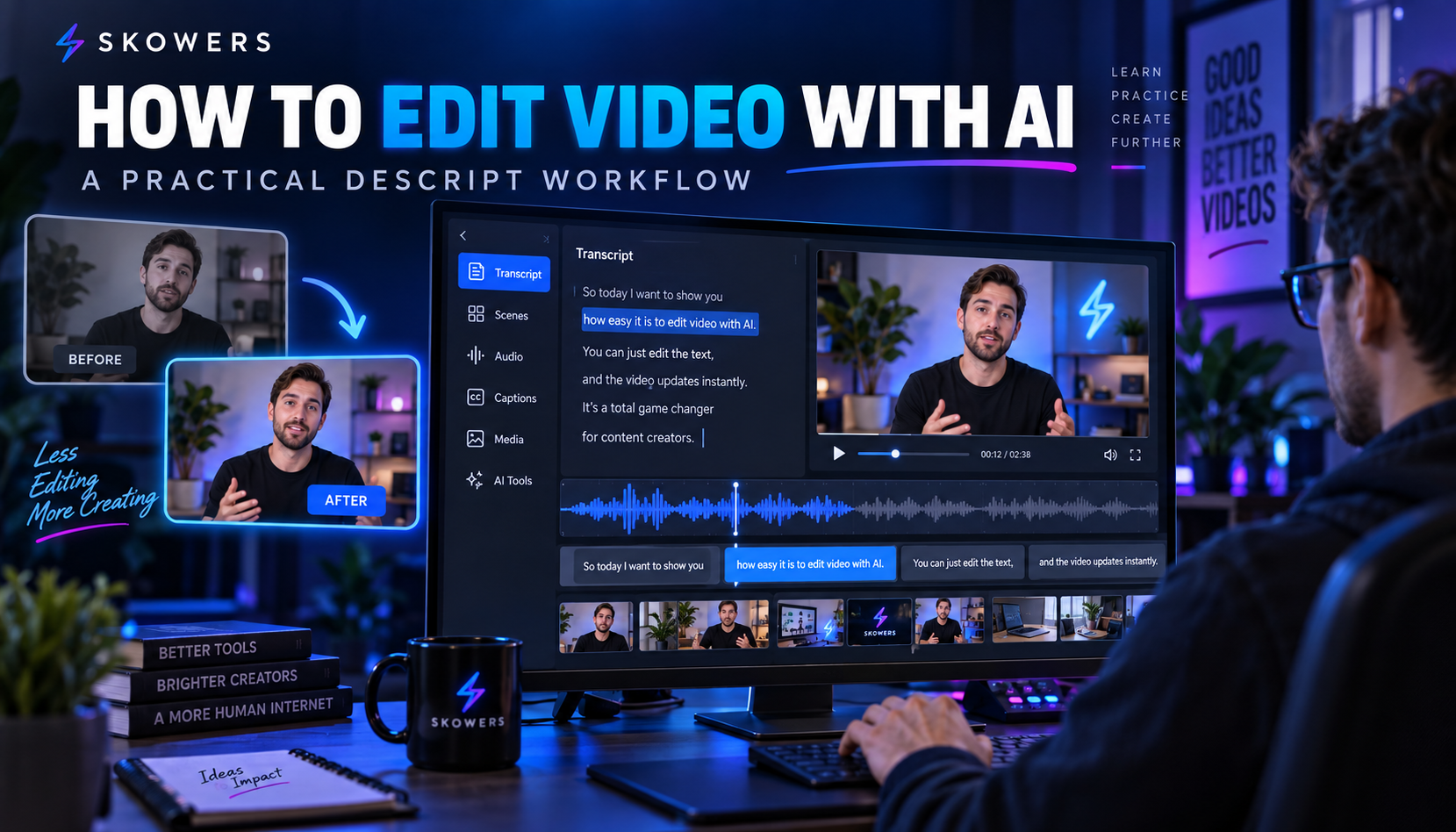
How to Edit Videos With AI Using Descript: A Beginner's Guide From Recording to Publish
Video editing used to begin with a timeline full of unfamiliar tracks. Descript offers a different starting point. It turns spoken audio into a transcript, then lets you shape much of the video by editing the words.
Delete a sentence and the matching footage is removed. Move a paragraph and the recorded media moves with it. The timeline is still available for precise work, but a beginner can make a useful first cut without learning every traditional editing control.
This guide explains how to use Descript from raw recording to finished video. It also shows where AI helps, where it can create mistakes, and how to build a repeatable process for YouTube videos, podcasts, interviews, tutorials, product demos, and social clips.
If you want to review pricing, features, and the current trial before starting, visit the Skowers Descript overview. You can also start with Descript through our partner link. Skowers may earn a commission if you choose a paid plan, at no additional cost to you.
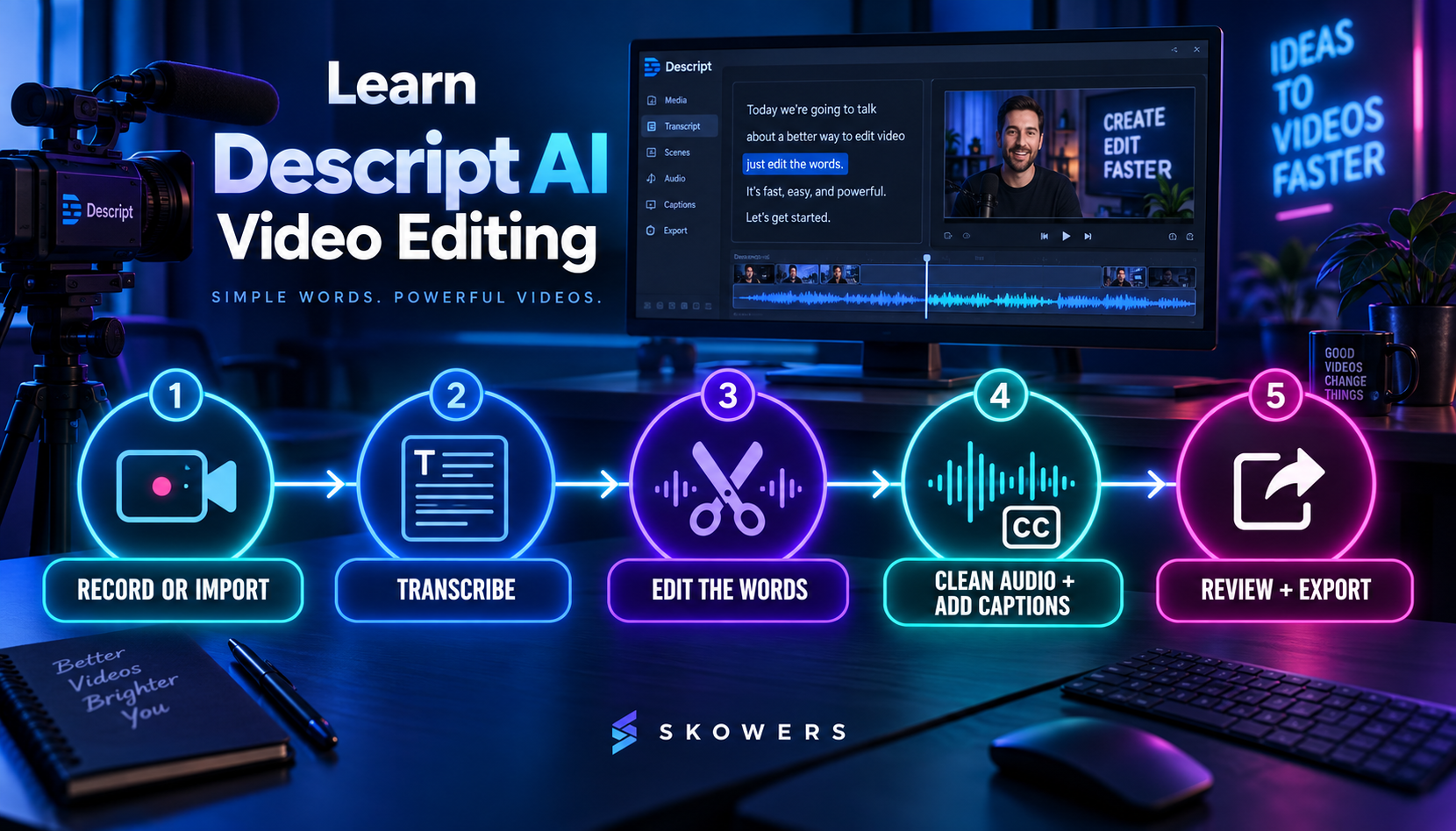
What Is Descript?
Descript is an AI video and audio editor built around a transcript. You can record inside the app or import existing media. Descript transcribes the recording and connects each word to the underlying audio and video.
That text-based approach is especially useful when the content is driven by speech. Common examples include:
- YouTube tutorials and educational videos
- Podcasts and video podcasts
- Interviews and customer stories
- Screen recordings and product demos
- Training videos and internal updates
- Webinars and presentation recordings
- Short clips made from longer conversations
Descript also includes tools for captions, audio cleanup, filler-word removal, layouts, scenes, background removal, eye-contact correction, screen recording, AI-assisted editing, and social clip creation. Features and plan limits can change, so check the current details before choosing a subscription.
Is Descript Good for Beginners?
Descript is one of the easier ways to learn video editing when spoken words are the center of the project. If you can edit a document, the basic cutting process will feel familiar.
It is not a magic publish button. You still need to make decisions about story, pacing, factual accuracy, visual variety, music, and brand. Descript reduces mechanical editing work. It does not replace taste or a careful final review.
How to Edit a Video With AI in Descript
1. Define the Finished Video Before You Record
Decide who the video is for, what they should learn, and what they should do next. Choose the target format before editing. A horizontal YouTube tutorial and a vertical Reel need different framing and pacing.
Write a simple production brief with:
- Audience
- Main promise
- Three to five teaching points
- Target length
- Destination platform
- Call to action
Create a practical video plan for [audience] about [topic]. The viewer should understand or accomplish [outcome]. Build a strong opening, three clear teaching sections, one useful example, and a concise closing action. Target [length] for [platform]. Avoid exaggerated claims and flag facts that need verification.
2. Record or Import Your Media
Create a project and bring in a video, audio file, screen recording, or remote interview. You can also record the camera, microphone, and screen in Descript.
Clean source material still matters. Record near the microphone, reduce background noise, use steady lighting, and leave a short pause when you make a mistake. AI cleanup works better when the original signal is understandable.
For an interview, confirm that speakers are labeled correctly. For a tutorial, keep the screen recording and camera footage organized so you can quickly find the right visual layer.
3. Review the Transcript Before Making Big Cuts
Automatic transcription gives you a fast starting point, but names, product terms, acronyms, and numbers may need correction. Fix important transcript errors first. Accurate text improves captions and makes later editing easier.
Read the transcript once without editing. Mark the opening promise, strongest explanation, useful proof, repeated ideas, and closing action. This prevents you from trimming individual sentences before you understand the full story.
4. Build the Rough Cut by Editing Words
Remove false starts, repeated explanations, tangents, and sections that do not serve the viewer. Rearrange useful passages when the logic will be clearer in a different order.
Keep natural pauses where they help comprehension. Removing every breath and silence can make a speaker sound rushed. The goal is clarity, not mechanical perfection.
Review this transcript as a video editor. Identify the strongest opening, repeated ideas, sections that drift from the main promise, and moments that need supporting visuals. Recommend cuts, but do not rewrite quotations or change the speaker's meaning. Preserve useful personality and natural pacing.
5. Use AI Cleanup Selectively
Descript can remove filler words, shorten pauses, improve audio with Studio Sound, and assist with other edits. Apply these tools in small passes rather than turning everything on at once.
Listen after every major cleanup. Filler words sometimes carry rhythm or meaning. Strong audio enhancement can sound unnatural on certain voices or recordings. Eye-contact correction and background removal also deserve a visual check around glasses, hair, hands, and fast movement.
Keep the original project version before major AI edits. A reversible workflow makes experimentation safer.
6. Add Scenes and Supporting Visuals
Talking-head footage becomes easier to follow when the visuals reinforce what is being said. Break the script into scenes, then add screen recordings, product footage, screenshots, headings, diagrams, or restrained stock media where they clarify the point.
Do not add B-roll only to keep the screen busy. A visual should explain, prove, orient, or reset attention. When the speaker mentions a setting, show the setting. When a process has steps, show the steps. When a claim depends on evidence, show the source.
7. Add and Correct Captions
Captions improve accessibility and help people understand videos when audio is off. Generate captions from the corrected transcript, choose a readable style, and check line breaks on the actual target screen size.
Review every proper name, number, URL, and technical term. Avoid placing captions under platform controls or too close to the edge of vertical video. Keep the text large enough to read without covering the subject.
8. Create Short Clips From Long Video
A long interview, podcast, or tutorial can become several short clips, but each clip still needs a complete idea. Look for moments with a clear opening, useful insight, example, and ending.
Do not choose clips only because a sentence sounds dramatic. The best short clip delivers value without requiring the viewer to watch the full recording for basic context.
Analyze this transcript for short-form video opportunities. Find five self-contained moments that teach one useful idea. For each, provide the opening line, the complete excerpt, why it is useful, a concise on-screen title, and the best format for Reels, Shorts, TikTok, or LinkedIn. Do not invent words that were not spoken.
9. Complete a Human Quality Check
Watch the finished video from beginning to end at normal speed. Do not rely only on the transcript. Look and listen for jump cuts, clipped words, strange audio, incorrect captions, unsupported claims, missing context, awkward visual changes, and accidental private information.
Then watch the opening again on a phone. The first few seconds should make the topic and value clear without misleading the viewer.
10. Export for the Destination
Choose the aspect ratio, resolution, audio settings, and file type required by the platform. Descript can export a local file, create a shareable link, or publish through supported integrations.
Save a clean master before making compressed social versions. Use a descriptive filename and keep the transcript, source files, thumbnail, captions, and final exports together.
A Practical Descript Workflow for YouTube
For a tutorial or educational YouTube video, use this order:
- Write an outline around one searchable question.
- Record the screen, camera, and microphone.
- Correct names and technical terms in the transcript.
- Remove repeated explanations and long detours.
- Add scenes when the viewer needs a screenshot, demo, or heading.
- Improve audio and add reviewed captions.
- Create a clear thumbnail and accurate title.
- Export, upload, and watch the published version once.
- Turn the strongest sections into standalone short clips.
This workflow is faster because one recording becomes several useful assets without treating every format as a new project.
Common Descript Mistakes to Avoid
Removing Every Filler Word
Automatic removal can improve a rough recording, but it can also create abrupt cuts. Review the suggested changes and keep natural speech where it sounds better.
Trusting the Transcript Without Watching
The text can look clean while the video contains a visual glitch, poor cut, or missing demonstration. The final review must include the actual media.
Using AI Effects to Repair Weak Planning
Studio Sound cannot fix an unclear argument. Eye Contact cannot create trust when the script is vague. Start with a useful promise and organized content.
Publishing Captions Without Corrections
Incorrect names and numbers damage credibility. Caption review is part of editing, not an optional final detail.
Making Every Platform Version Identical
Horizontal, square, and vertical video behave differently. Reframe the subject, move captions, shorten openings, and check platform safe areas.
Frequently Asked Questions About Descript
Can Descript edit video by editing text?
Yes. Descript connects the transcript to the recording. Deleting or moving transcript text changes the corresponding media. A timeline remains available when you need more precise control.
Can Descript remove filler words and long pauses?
Descript includes tools for filler words and silence. Review the result carefully because automatic cuts can occasionally remove natural rhythm or create abrupt transitions.
Can Descript add captions and subtitles?
Yes. Captions can be generated from the transcript and styled for the video. Correct the transcript and inspect placement before publishing.
Can Descript improve bad audio?
Studio Sound can reduce noise and enhance speech, but results depend on the source recording. Severe clipping, overlapping speakers, or very distant audio may still need another recording or specialized repair.
Can Descript make clips for social media?
Yes. Descript can help identify highlights, create clips, add captions, and reformat content for different platforms. A person should still confirm that each clip has enough context and represents the speaker accurately.
Does Descript replace Premiere Pro, Final Cut Pro, or DaVinci Resolve?
It depends on the job. Descript is especially efficient for speech-led content and fast collaborative production. Traditional editors may offer deeper control for complex color work, effects, animation, multicamera finishing, and highly detailed timelines. Some teams use Descript for the transcript-based rough cut and another editor for advanced finishing.
Is Descript useful for podcasts without video?
Yes. Its transcript editing, audio cleanup, speaker labeling, collaboration, and clip workflows also apply to audio podcasts.
The Best Way to Learn Descript
Do not begin with your most important client video. Choose a five-minute recording and complete one small project from import to export.
Measure the full process, including transcript correction, editing, caption review, export, and final quality control. A tool saves time only when the finished result takes less total human effort.
For a closer look at the app, current trial, and who it fits, open the Descript tool page on Skowers. To compare it with other creative tools, visit the Skowers Creative Suite or browse free AI trials. If you need help planning scripts and editing briefs, start with the Prompt Library.
The Bottom Line
Descript makes video editing more approachable by connecting the edit to the transcript. That can remove hours of timeline searching from interviews, tutorials, podcasts, product demos, and other speech-led videos.
The strongest workflow is simple. Plan the outcome, record clean material, correct the transcript, build the rough cut, apply AI cleanup carefully, add useful visuals and captions, then watch the entire export before publishing.
AI can accelerate the mechanics. A thoughtful editor still protects the meaning, quality, and trust.
Related Articles
Continue Your Research